
Sending recognition in mobile app
Last updated May 30, 2026
Now that you’ve downloaded the mobile app, you're ready to start sending recognition on the go!
Step 1: Once you have logged into your organization, select the award icon at the bottom of your device.
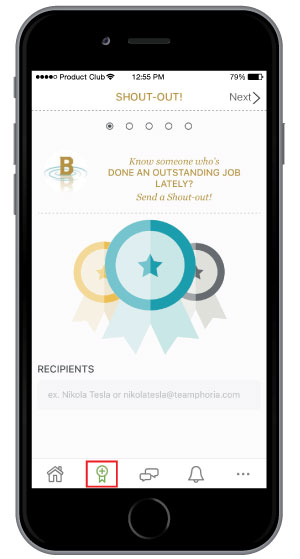
Step 2: Enter a recipient's name and select the + button. If you want to add another recipient, type in their name and select the + button again. Once you are finished, select Next in the top right-hand corner of your device.
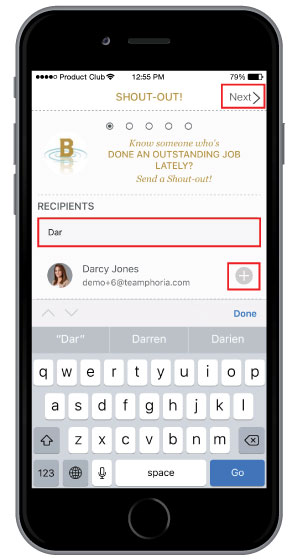
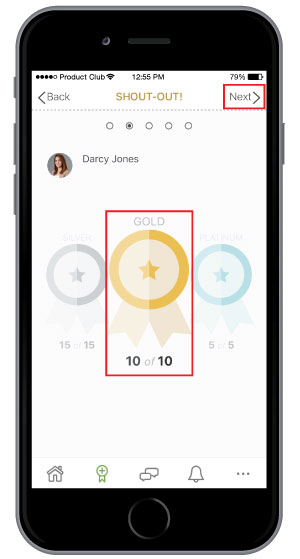
Step 3: Scroll to the left or right to choose the level of award you would like to give (group, silver, gold, or platinum) and then select Next.
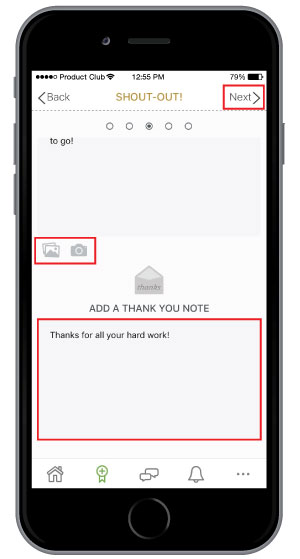
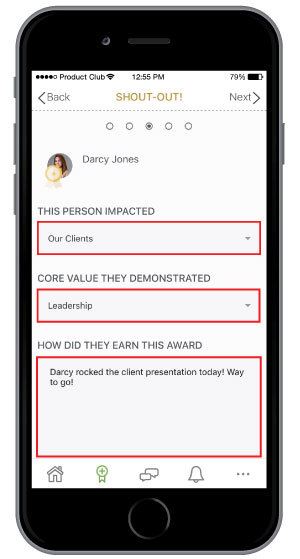
Step 4: Select the impact, the core value, and write a brief description of how the individual earned this award. Add a picture saved in your camera roll by selecting the photo icon, or take a picture by selecting the camera icon. You can also add an additional thank you note the will only go to the individual receiving the award. Once everything is filled in, select Next in the top right-hand corner.
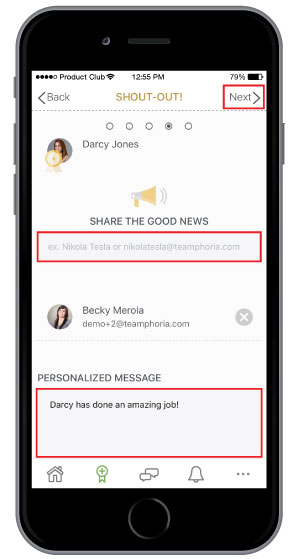
Step 5: You also have the option to share the good news with other team members. Once complete, select Next in the top right-hand corner.
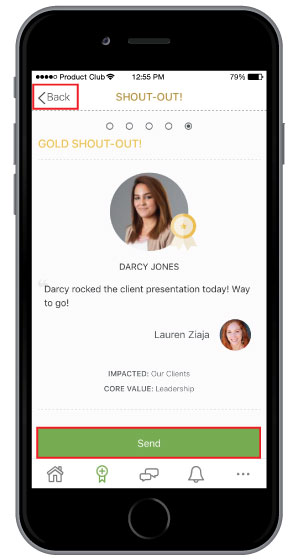
Step 6: Review your award and select Send. If you need to make changes to the award, select Back in the top left-hand corner. You can also edit an award after it has posted by selecting the pencil icon in the top right-hand corner.

That’s it! You’ve now sent recognition on your mobile device.