
Resetting a User's Password
Last updated May 30, 2026
Need to send a password reset email to a user in Teamphoria? This step-by-step guide will walk through finding a user's profile card and sending a reset password link.
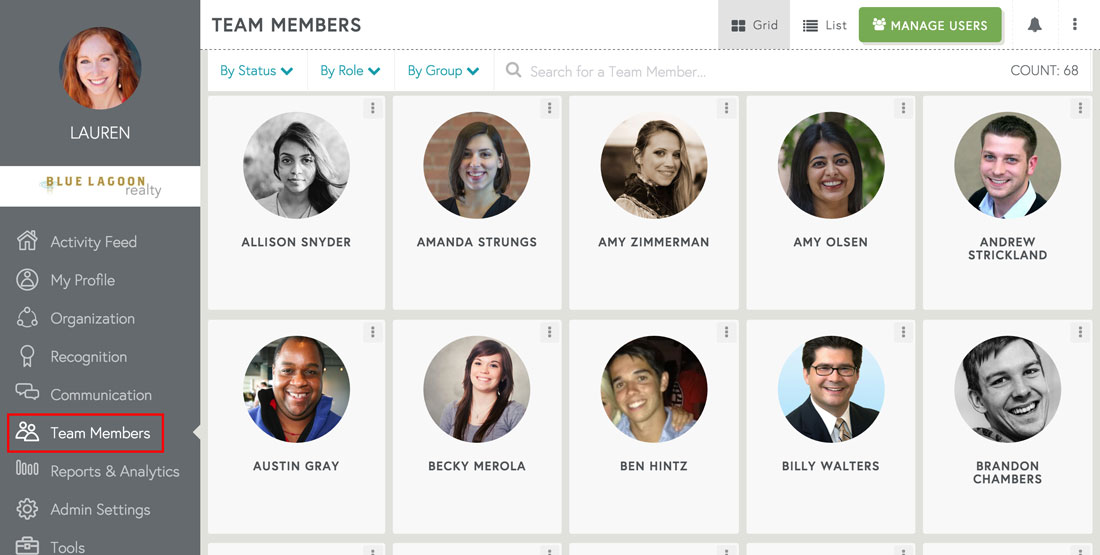
Step 1: Select the Team Members page from the side-navigation.
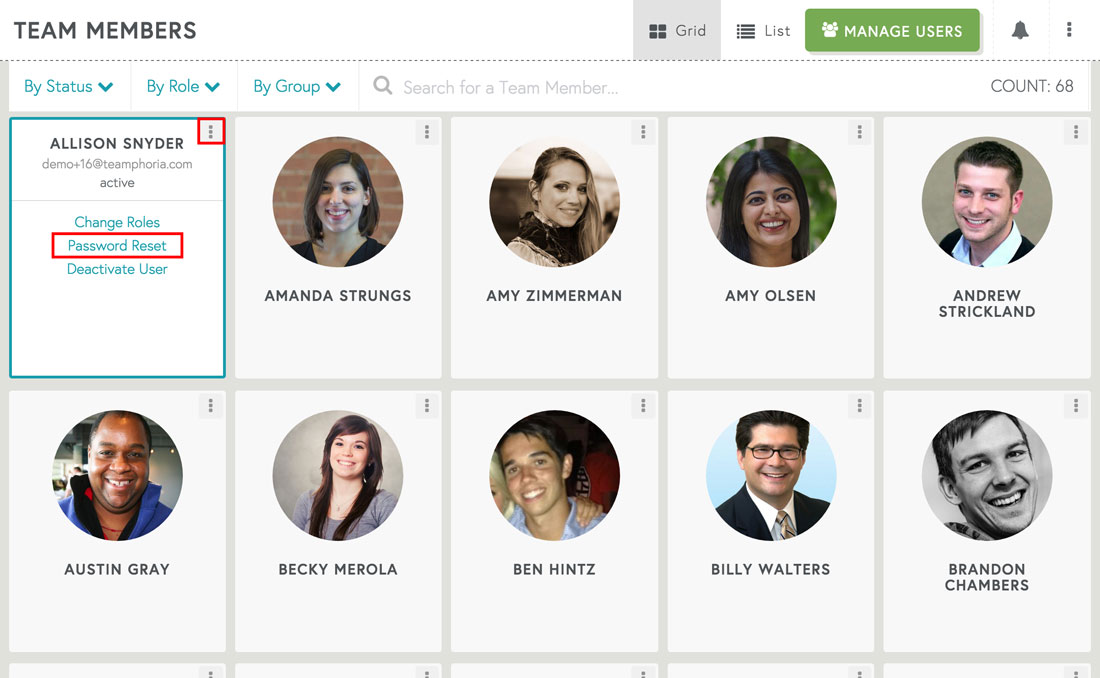
Step 2: Find the user's profile card and select the additional options icon in the right-hand corner. Select Password Reset from the display menu.
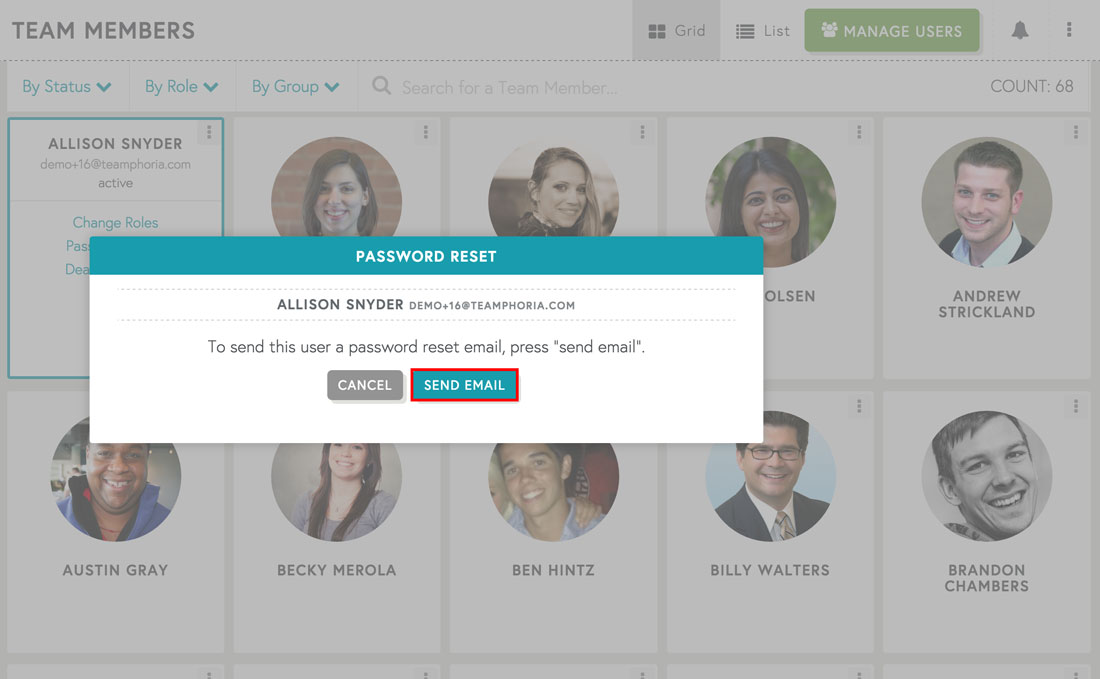
Step 3: Select the Send Email button to send a custom password reset link to the user. The user will receive an email in a few minutes with instructions to set a new password.
That's it! You've now sent a password reset email to a Team Member from Teamphoria!