
Resending an Invite to a Pending User
Last updated May 30, 2026
Need to resend an invitation to a pending user in Teamphoria? This step-by-step guide will walk through finding a user's profile card and sending an invitation email to join Teamphoria.
Please note: Only users marked as Pending on their profile card can be resent an invitation to join Teamphoria. If a user is marked as Active and cannot log in, send them a Password Reset email.
Step 1: Select the Team Members page from the side-navigation.

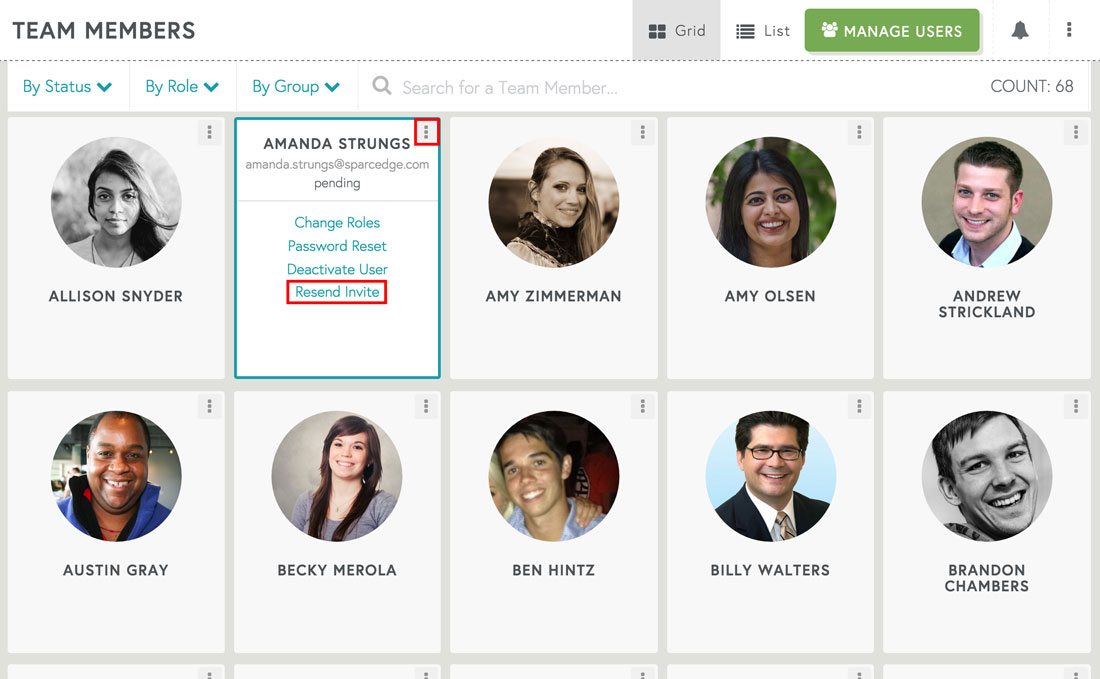
Step 2: Find the user's profile card and select the additional options icon in the right-hand corner. Select Resend Invite link from the display menu.
Please note: If you do not see the Resend Password link that means the user is either Active or Deactivated in the system. You can resend a user password if they are Active and can't log in.
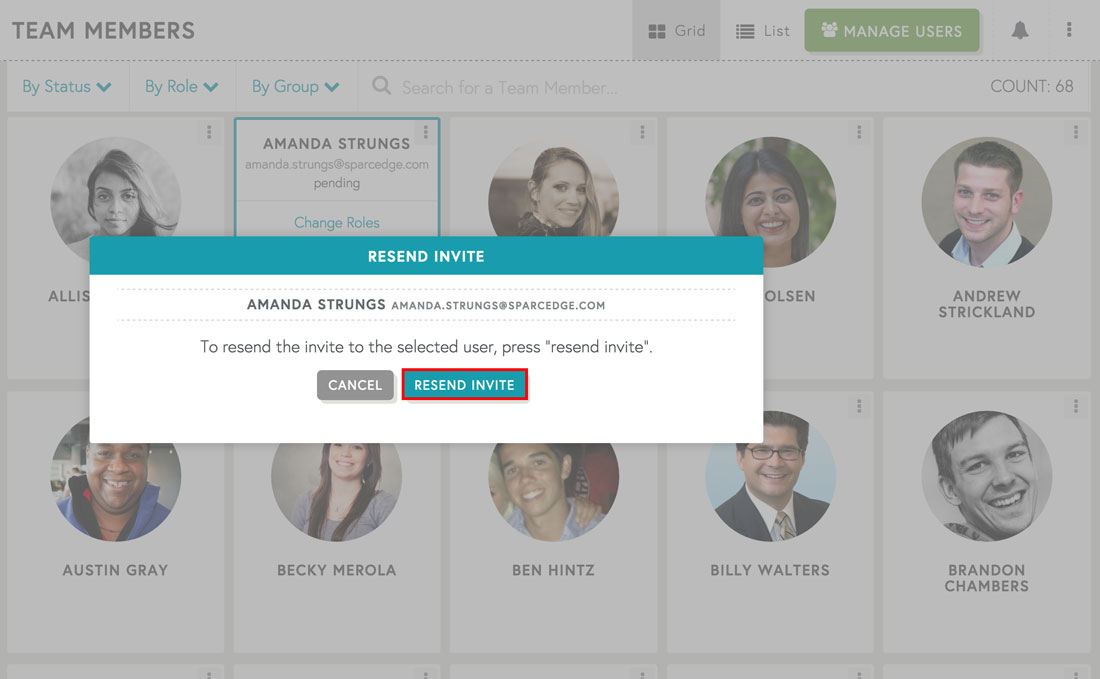
Step 3: Select the Res end Invite button from the pop-up modal to send an invitation email to join Teamphoria to the associated User's email address. The user will receive an email in a few minutes with instructions to activate their pending account.
That's it! You've now resent an Invitation email to a Team Member from Teamphoria!